
You scripted the video. Shot the B-roll. Spent three hours in Premiere trying to sync the music to the cuts. The result looks fine — but “fine” doesn’t stop anyone from scrolling on TikTok or Reels. You needed this posted yesterday, and you’re still color grading.
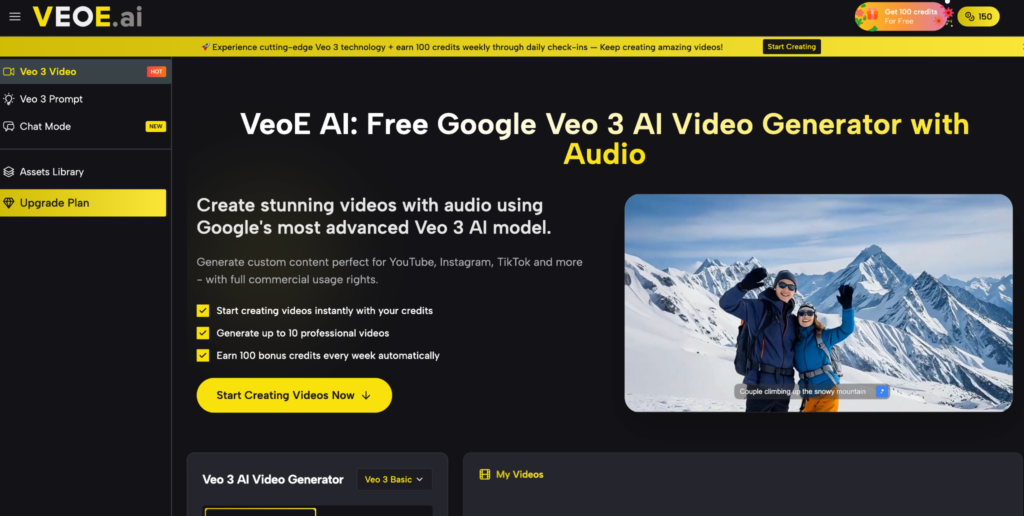
AI video generation has shortened this entire process to a single text input. Tools like Free Veo 3 run on Google’s Veo 3 model and generate video with synchronized audio in seconds — this article walks through what that actually looks like in a real content workflow.
What Traditional Video Production Actually Costs You
For solo creators, the production process is the bottleneck — not the ideas. Here’s where the time goes and what AI generation fixes:
- Editing hours per video: Cutting, color grading, audio mixing, and platform resizing easily add up to four to six hours per clip — making consistent high-frequency posting functionally impossible without a team.
- Audio licensing friction: Finding music that fits, verifying it won’t trigger Content ID, and manually syncing it to cuts is where most editing sessions run over schedule. Stock libraries are either generic or legally unreliable.
- Format resizing for every platform: A 16:9 YouTube cut needs to become a 9:16 Reel, a square post, and a Story — each resize is another task that compounds total production time.
- Tool-switching overhead: Script in one app, edit in another, find audio in a third, export in a fourth. Every handoff between tools is a friction point that adds time and creates version control problems.
The result is a forced trade-off between posting quality and posting frequency — when platforms reward both.
What VeoE AI Actually Lets You Do
VeoE AI runs on Google’s Veo 3 model — video and audio generate together in one step, not assembled separately after the fact.
Text to Video
Describe your shot, the mood, the motion, and the audio environment in a text prompt. The model returns a clip with synchronized sound already embedded — no separate music search, no manual audio sync. This is the starting point for most creators working from a script or brief.
Image to Video
Upload a static reference image — a product photo, a mood board frame, or a storyboard sketch — and VeoE AI animates it into a video clip. Useful when you have a clear visual direction but no footage, or when existing brand assets need to become motion content.
Chat Mode
Skip prompt writing entirely. Chat Mode lets you describe your idea conversationally — “make a short film about a coffee shop at dawn with ambient sound” — and the AI plans the generation, handles the structure, and produces the video. It also supports preset formats like Avatar Video, ASMR Video, and multi-scene Short Film, which is useful when you want a specific output type without building a prompt from scratch.
Veo 3 Prompt Library
If you’re using Text to Video and want better first-pass results, the Prompt Library shows real curated examples with the actual prompts that generated them. You can copy and adapt directly, or use the built-in AI prompt generator (3 free uses per day) to turn a rough idea into a fully structured generation prompt.
Aspect Ratio Control
Set 16:9 or 9:16 before generating — not after. One click that preserves composition from the start; resizing a finished clip always costs you something in framing.
No registration required to try it. New users get 100 free credits on login, with 100 more available weekly through daily check-ins. Commercial usage rights are included on all outputs. Everything runs in one interface, which removes the tool-switching that fragments a typical production session.
How to Generate Your First Video in Under 10 Minutes
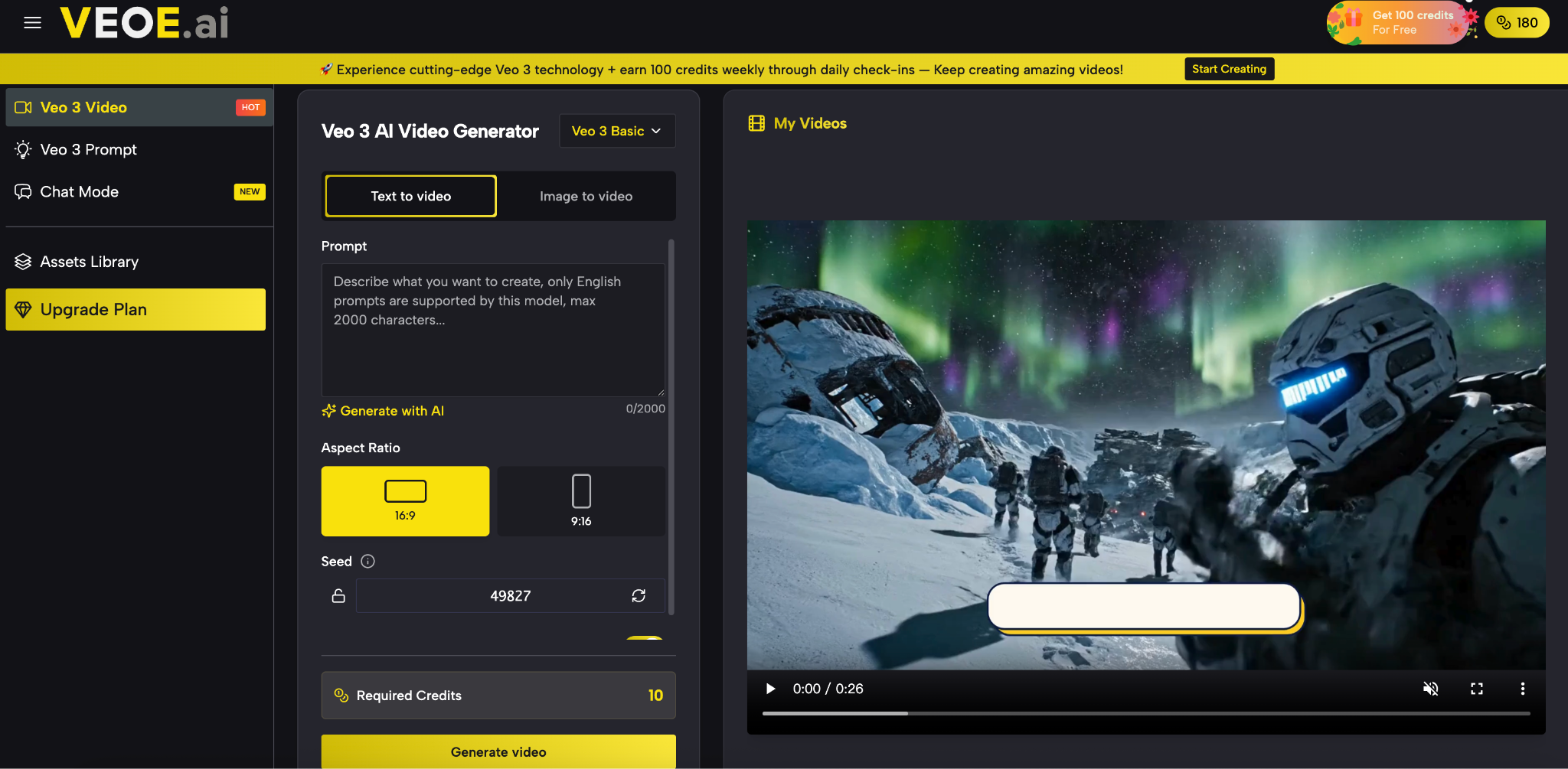
Step 1 — Choose your input mode: text or image
If you’re starting from a concept, use Text to Video. If you have a reference image or product shot you want animated, switch to Image to Video. Both options are on the same screen.
Step 2 — Write a prompt that describes the shot, not just the subject
The model responds to specificity about motion, environment, and audio — not just what’s in the frame.
Step 3 — Set aspect ratio before generating
Pick 9:16 for TikTok or Reels, 16:9 for YouTube. Generating at the right ratio takes one click; resizing after costs you composition quality.
Step 4 — Review, download, and post
If the first output is directionally right but slightly off, adjust the prompt and regenerate. Second-pass outputs are usually significantly tighter.
FAQ
Is content generated on VeoE AI safe to post on YouTube and TikTok commercially?
Yes — full commercial usage rights are included with all generated videos.
Do I need to create an account before generating a video?
You can explore the interface without signing up; logging in unlocks 100 free credits instantly.
How does Veo 3 compare to other AI video tools like Sora or Kling?
Veo 3 generates video and audio together natively — most competitors require separate audio steps or don’t include audio at all.
What are the limitations of AI-generated video for content creators?
Clip length is currently short-form focused; longer narrative videos still need manual assembly or editing after generation.
Can I use a reference image I don’t own as input for Image to Video?
Only use images you have rights to — the output rights are yours, but the input responsibility is yours too.
Conclusion
If you’re producing short-form content regularly and editing time is your biggest constraint, VeoE AI is worth a session. The Veo 3 model’s native audio generation is the part that saves the most time — it removes the step most creators underestimate. Start with a simple text prompt, compare it to what you’d normally spend an afternoon building, and go from there. A practical place to start, especially if your posting schedule is more ambitious than your editing hours allow.
More Stories
The Gamification of E-Commerce: UX Retention Lessons from the iGaming Industry
The Tech and Gaming Innovations Making Horse Racing More Interactive and Engaging Than Ever Before
The Technology Stack Supporting Modern Online Slot Experiences